
Overview
Flint doesn't have native forms yet, but we integrate with all third-party form providers. This guide shows you how to add forms from HubSpot, Marketo, Typeform, and any other form tool to your Flint pages.
Adding Forms to Your Page
To insert a form in your Flint pages:
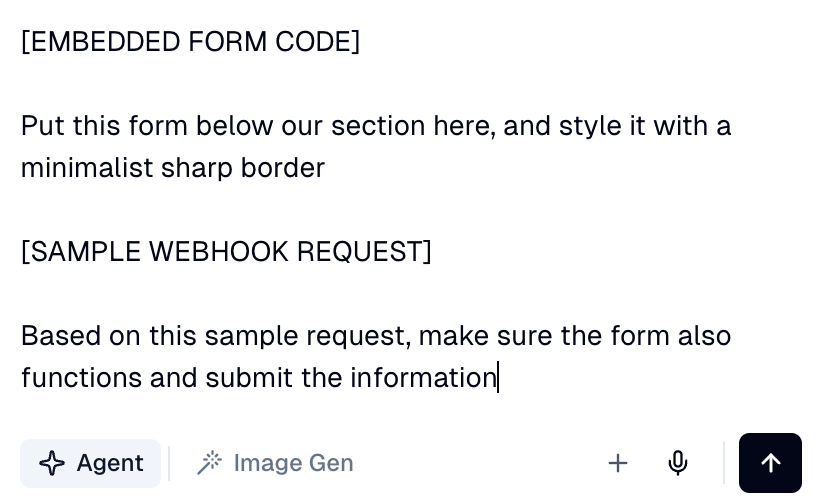
- •Paste the embed code or URL in the chat and ask the agent to add the form to any specific section
Styling Considerations
- •Embed code: Form styling is pre-configured in the HTML; Flint has limited control over it
- •URL only: Flint can fully customize the form layout to match your brand
Embedded Forms
Paste the HubSpot embed code to add a pre-styled form directly to your page. The form styling is pre-configured in the HTML, so Flint has limited control over it.
To add an embedded form:
- •Copy the embed code from your form provider (HubSpot, Typeform, Marketo, etc.)
- •Paste the embed code in the chat and ask the agent to add it to your page
Custom Forms
Flint can create native HTML forms that are fully customizable and styled to match your brand. These forms can submit data to any HTTP endpoint—HubSpot, Clay, Zapier, or any custom webhook backend.
To add a custom form:
- •Share a sample webhook request or form endpoint URL with Flint
- •Flint will generate a native HTML form that submits data via HTTP to your chosen backend
- •Customize the form layout, fields, and styling to match your brand
Pro Tip: Matching HubSpot Form IDs
Watch how to quickly instruct Flint to create a native HTML form that matches your HubSpot form's field IDs and endpoint—so submissions flow directly into HubSpot without any extra configuration.
